Quick Import Flow
Copy the CMS Flight Information page text (including the Zscaler Browser Isolation clipboard steps when CMS opens in isolation), open the flight in 5X Wingman, then use IMPORT FROM CMS FLIGHT INFO on Edit Flight. Scheduled and actual times are not imported. Real CMS personal details are blurred in the CMS screenshots; app screenshots use mock import data.
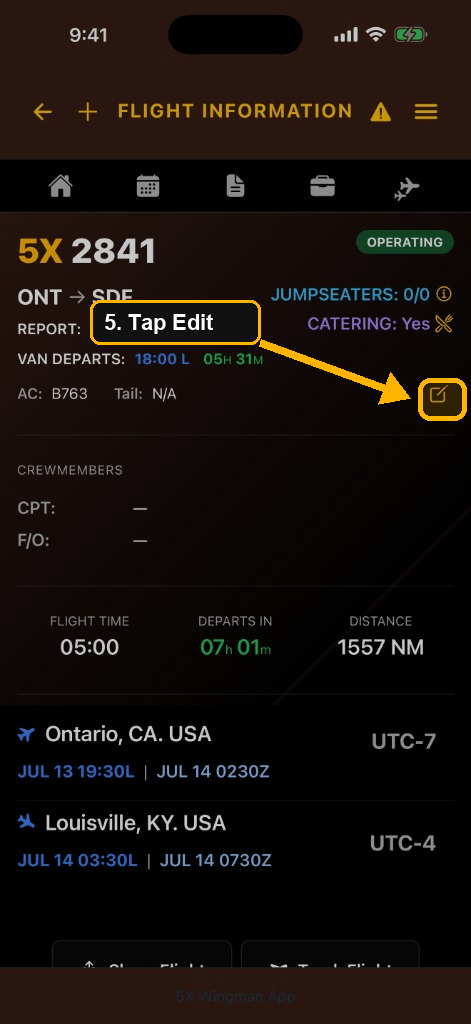
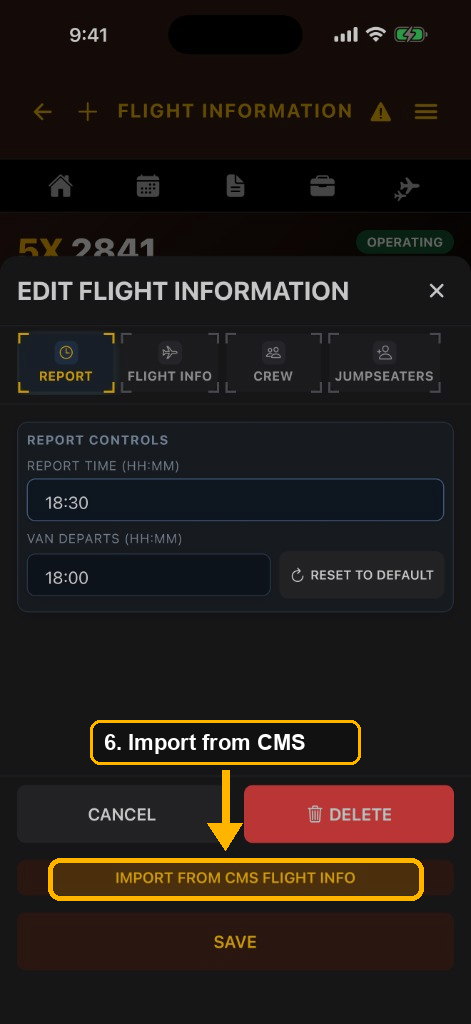
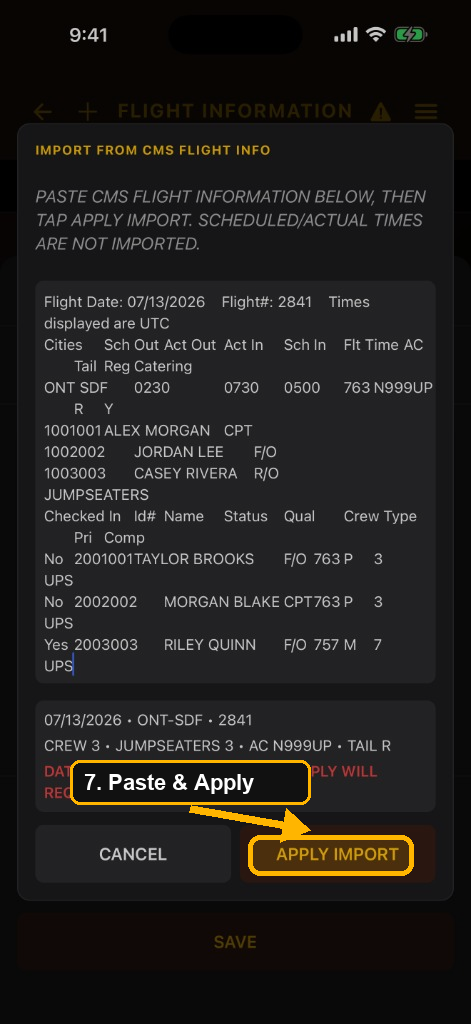
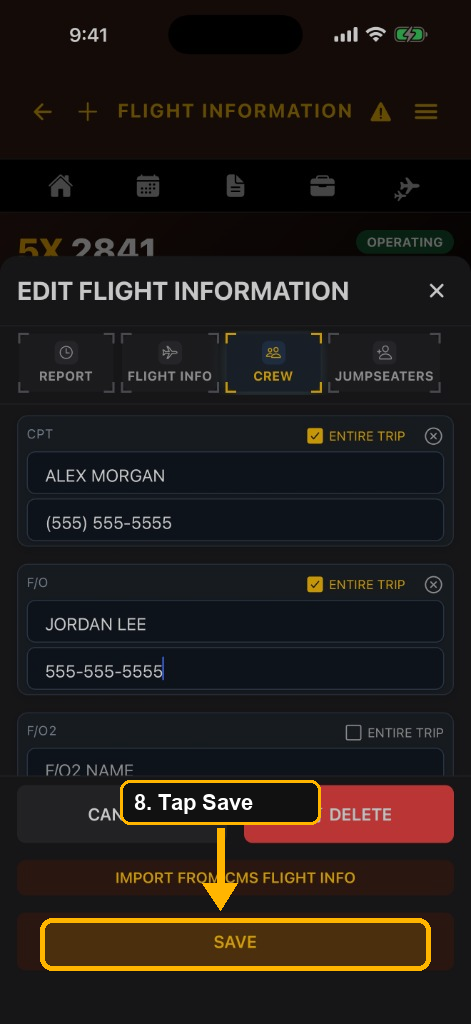
- On CMS, open Flight Information for the same flight date and flight number you are editing in 5X Wingman.
- Select the page text, including the flight date line, the cities/route row, operating crew lines, and the JUMPSEATERS table when present. Then tap Copy on the Zscaler pop-up, or press ⌘C (Mac) / Ctrl+C (Windows).
- On the Zscaler isolation toolbar (bottom right), tap the clipboard icon to open Isolation Clipboard.
- Tap Copy to isolation so the CMS text can be pasted outside the isolated browser into 5X Wingman.
- In 5X Wingman, open that flight’s Flight Information page and tap the gold pencil next to AC / Tail.
- Tap IMPORT FROM CMS FLIGHT INFO, paste the copied text, then tap APPLY IMPORT.
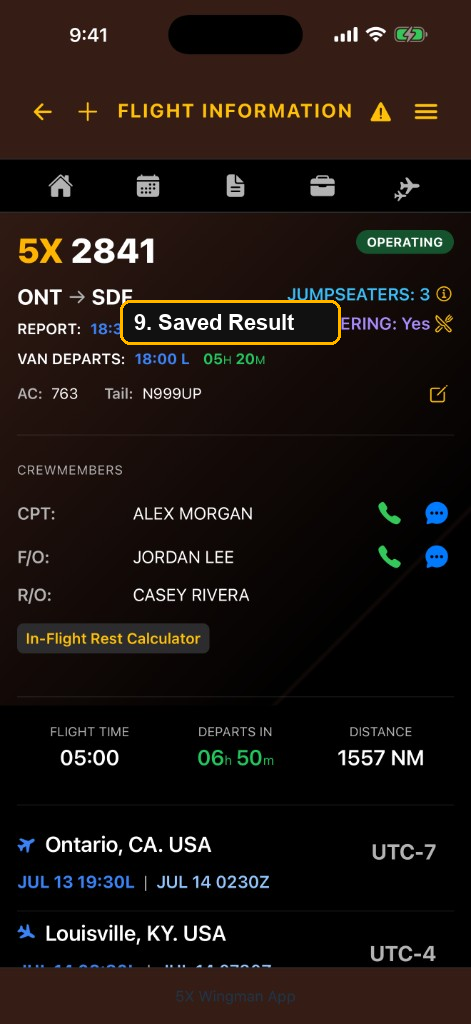
- Review the CREW and JUMPSEATERS tabs. Add phone numbers if you want, then tap SAVE.
Tips: If CMS is not opened through Zscaler Browser Isolation, you can
skip the Isolation Clipboard steps and paste normally. Scheduled and actual times are not
imported. If the pasted date, route, or flight number does not match this leg, the app
asks you to confirm before applying. Jumpseaters import is not shown on commercial travel
legs. Offline edits save on your device and sync when you are back online. See also
How to Edit a Flight.