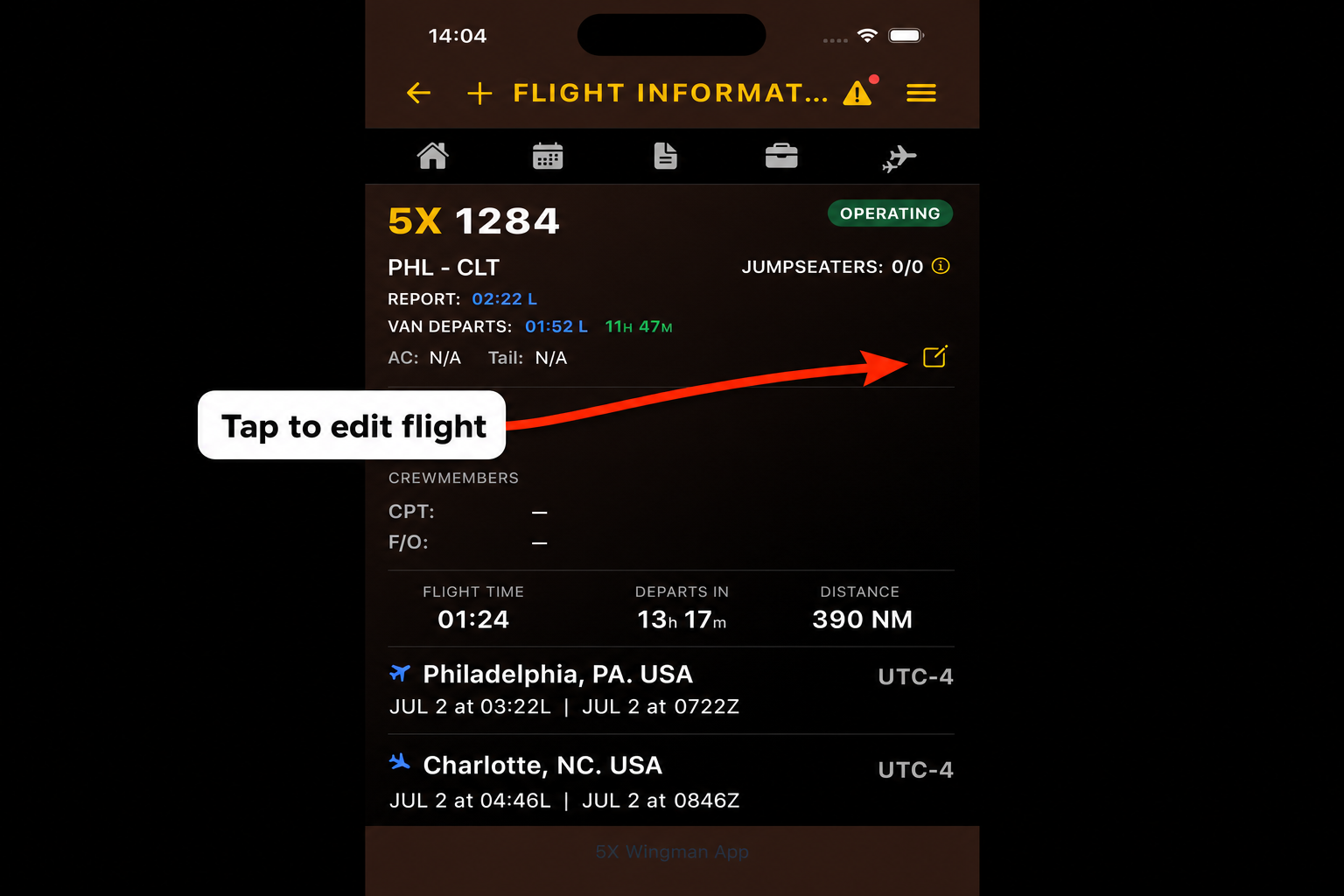
Tap image to enlarge
How to Edit a Flight
Use Edit Flight when roster data is missing or wrong — aircraft type, tail number, crew names, report time, van time, or jumpseaters. Your changes show on the Flight Information page right away, even offline.
- Open a flight from your schedule — tap a row on Agenda, tap Next Duty on Home, or tap a leg on a trip detail page. You should see the Flight Information screen.
- Tap the gold pencil icon on the right, next to the AC / Tail line (see screenshot).
-
In Edit Flight Information, pick a tab and change what you need:
Tab Use it to change REPORT Report time, van departure, leave-home time (first leg of the beginning of a trip only) FLIGHT INFO Flight number, route, scheduled times, aircraft, tail, operating vs deadhead CREW Captain, First Officer, and relief officer names and phone numbers JUMPSEATERS Jumpseater list (not shown on commercial travel legs) - Tap SAVE at the bottom. The page updates with your edits. Tap CANCEL or the X to close without saving.
Tips: Times use HH:MM (example: 02:22). On the Crew tab, check
ENTIRE TRIP to apply a crewmember to every leg in the pairing. On Jumpseaters,
use IMPORT FROM CMS FLIGHT INFO to paste from CMS
(full CMS import tutorial).
Offline edits save on your device and sync when you are back online.